
How to Configure Visio Keyboard Shortcuts
Keyboard shortcuts can make repetitive Visio tasks faster by reducing the need to repeatedly navigate through tabs, menus, and dialog boxes. A practical way to improve keyboard access is to configure the Quick Access Toolbar with the commands you use most frequently and place them in a consistent order.
This guide walks through a practical method for configuring the Visio Quick Access Toolbar, accessing those commands with the Alt key, and using additional keyboard shortcuts for common drawing, formatting, navigation, and editing tasks. The objective is not to memorize every available shortcut. It is to create a more efficient and repeatable way to access the commands you use most often.
Objective
Configure Visio keyboard access that:
Provides quick access to commonly used commands
Uses the Quick Access Toolbar for Alt key shortcuts
Maintains a consistent command order
Reduces repeated navigation through the Visio interface
Provides a categorized reference for additional shortcuts
Why It Matters
Many Visio workflows involve repeating the same commands throughout a drawing session. Opening task panes, selecting drawing tools, grouping and ungrouping shapes, formatting text, and changing the view may each require only a few clicks, but repeatedly navigating through the interface adds unnecessary friction to the drawing process.
A well-configured Quick Access Toolbar provides a more direct path to frequently used commands. Once those commands are arranged in a consistent order, they can also be accessed using the Alt key.
Keyboard shortcuts complement that setup by providing direct access to additional drawing and editing functions. Used together, the Quick Access Toolbar and keyboard shortcuts can make routine drawing activities faster and more predictable without changing the underlying engineering workflow.
Before You Begin
Before configuring the Quick Access Toolbar, identify the commands you use most frequently and decide the order in which you want them to appear.
The order matters because the Quick Access Toolbar provides keyboard access to those commands using the Alt key. Keeping the toolbar arrangement consistent makes those shortcuts easier to remember and reuse.
The downloadable Visio Keyboard Shortcuts reference also groups additional shortcuts into several categories, including:
Symbols
Math
Greek letters
Shapes
Task panes and windows
Text
Tools
Zoom
Use the downloadable PDF as a quick reference rather than trying to memorize every shortcut at once.
Step 1: Open the Quick Access Toolbar Settings
Start by opening the Visio options used to configure the Quick Access Toolbar.
Create blank drawing (open Visio → Blank Drawing → Create)
Open Quick Access Toolbar settings (File → Options → Quick Access Toolbar)
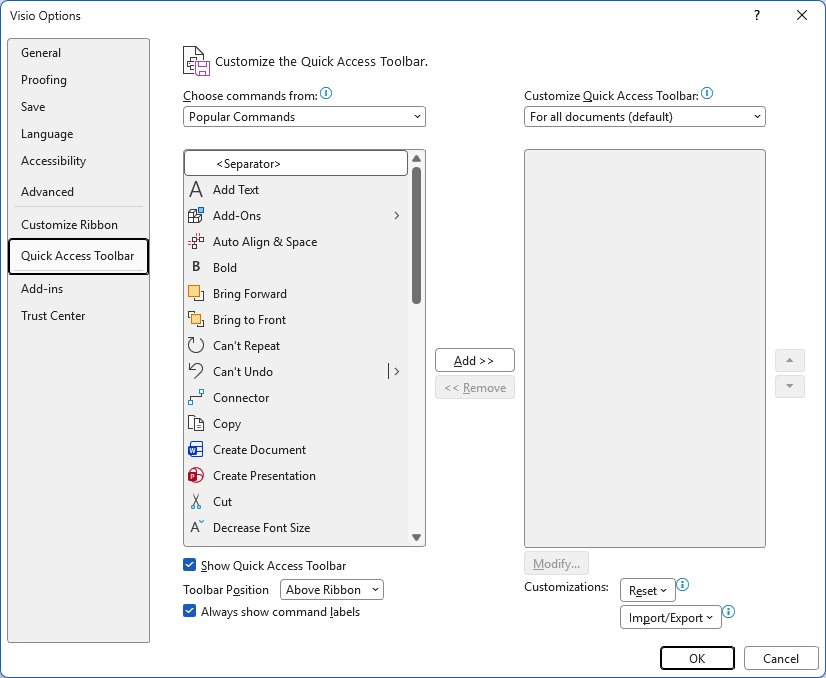
Step 2: Add Desired Commands
By default, the command list may show only a subset of available commands. Change the list so you can search across the full set.
Display all available commands (Choose commands from = All Commands)
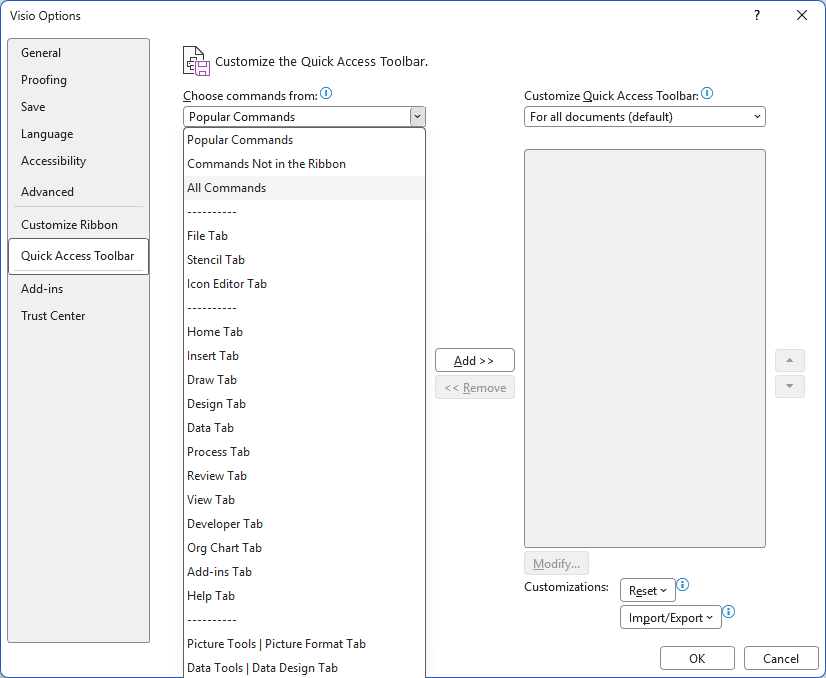
- Add desired commands (click anywhere inside command list → start typing name of command → double-click on desired command)
Step 3: Arrange the Quick Access Toolbar Commands
Once the desired commands have been added, arrange them in the order you want to use.
Arrange Quick Access Toolbar commands (reorder commands using up and down buttons → OK)
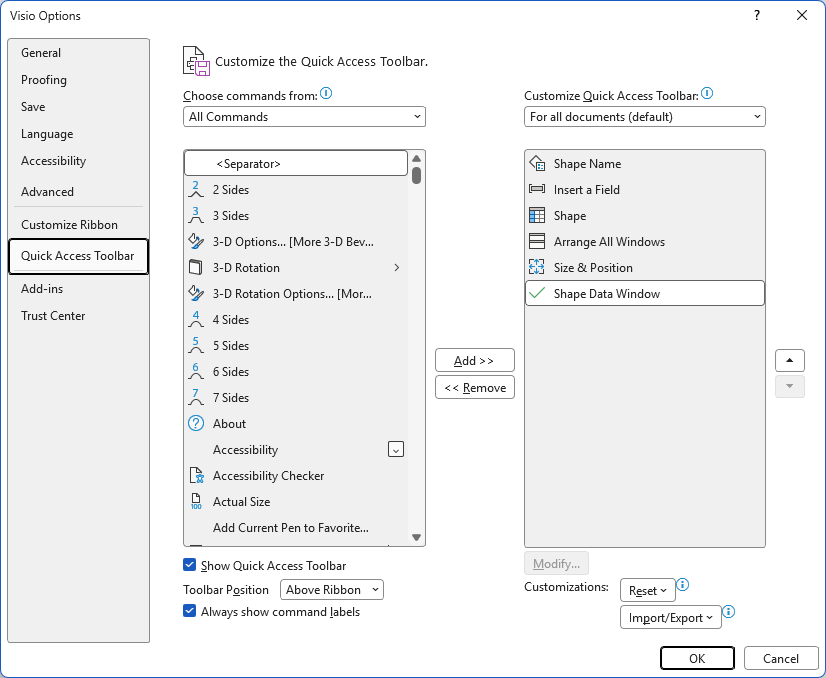
Keep this order stable after you begin using the shortcuts. The specific Alt key sequence depends on the order of the commands in your Quick Access Toolbar.
Step 4: Access the Quick Access Toolbar Commands with the Alt Key
After the Quick Access Toolbar is configured, the commands can be accessed directly from the keyboard by using the Alt Key. For example, pressing Alt+1 will open the Shape Name window.

Implementation Recommendations
To get the most value from the Quick Access Toolbar and keyboard shortcuts, apply a few operating principles.
Keep the Quick Access Toolbar order consistent: Once you learn the Alt key assignments, avoid rearranging the commands unless necessary.
Prioritize frequently used commands: Use the Quick Access Toolbar for commands you repeatedly access rather than filling it with commands you rarely use.
Use direct shortcuts where they already exist: A command that already has an efficient keyboard shortcut may not need to occupy space on the Quick Access Toolbar.
Learn shortcuts gradually: Start with a small number of frequently repeated commands and expand as they become familiar.
Keep the shortcut guide accessible: Use the downloadable guide as a reference when you need a shortcut that is not yet part of your normal workflow.
Use a consistent configuration: If the same workflow is used repeatedly, maintaining the same toolbar arrangement makes keyboard access more predictable.
Result
You now have a Visio keyboard workflow that supports:
Faster access to frequently used commands
Quick Access Toolbar commands through the Alt key
Consistent shortcut assignments
Direct access to common shape and drawing tools
Faster navigation between frequently used windows and task panes
A categorized reference for additional shortcuts
More importantly, you now have a repeatable way to reduce unnecessary interface navigation. Instead of searching for the same commands each time you work in Visio, frequently used functions can remain immediately accessible from the keyboard.
Final Thought
The most useful keyboard shortcuts are not necessarily the ones you can memorize. They are the ones that remove repeated friction from the work you perform most often. A deliberately configured Quick Access Toolbar, combined with a focused set of direct shortcuts, can make Visio easier to navigate while keeping attention on the engineering drawing itself.